Deploying a Next.js Application on Azure vs Nimbuz

Modern web applications require fast, scalable, and reliable deployment platforms. After building a Next.js application, choosing the right deployment approach directly impacts performance, scalability, and developer productivity.
In this article, we’ll explore two popular deployment strategies: running applications on a Virtual Machine with Microsoft Azure, and using a Platform as a Service (PaaS) solution like Nimbuz to simplify and accelerate the process.
Deploy a Next.js Application on Azure Virtual Machine
Azure Virtual Machines allow developers to host applications with full control over infrastructure. You manage the OS, runtime, server configuration, and deployment manually.
Step 1: Create an Azure Virtual Machine
- Login to Azure Portal.
- Click Create Resource.
- Select Virtual Machine.
- Choose the following settings:
- OS: Ubuntu or Windows Server
- Size: Basic (for testing)
- Authentication: Password or SSH
- Click Create.
Step 2: Connect to the Virtual Machine
ssh azureuser@your-public-ip
Step 3: Update the Server
sudo apt update
sudo apt upgrade -y
Step 4: Install Node.js and NPM
Next.js requires Node.js runtime:
Example:
sudo apt install nodejs npm -y
node -v
npm -v
Step 5: Upload Your Next.js Project
Using Git:
git clone https://github.com/your-repo/nextjs-app.git
cd nextjs-app
Step 6: Install Dependencies
npm installStep 7: Build the Application
npm installStep 8: Start the Application
npm run startBy default, Next.js runs on port 3000.
Step 9: Install NGINX
sudo apt install nginx -yStep 10: Configure Reverse Proxy
sudo nano /etc/nginx/sites-available/nextjs-app
Add the following configuration:
server {
    listen 80;
    server_name your_domain_or_ip;

    location / {
        proxy_pass http://localhost:3000;
        proxy_http_version 1.1;
        proxy_set_header Upgrade $http_upgrade;
        proxy_set_header Connection 'upgrade';
        proxy_set_header Host $host;
    }
}
Enable and restart:
sudo ln -s /etc/nginx/sites-available/nextjs-app /etc/nginx/sites-enabled/
sudo nginx -t
sudo systemctl restart nginx
Step 11: Access Your Application
Open:
http://your-public-ipYour Next.js application is now live.
Enable HTTPS on Azure VM:
The best practice for production is to run your app securely with HTTPS.
Additionally, we need to follow the following steps for the HTTPS connection.
Step 1: Install Certbot
Certbot helps you generate free SSL certificates from Let’s Encrypt.
sudo apt install certbot python3-certbot-nginx -yStep 2: Make Sure Domain is Pointing to Your VM
Before generating SSL, your domain must point to your Azure VM public IP.
Example:
yourdomain.com → your-public-ipYou can configure this in your domain provider (GoDaddy, Namecheap, etc.)
Step 3: Update NGINX Config (if needed)
Make sure your config has the correct domain:
server {
    listen 80;
    server_name yourdomain.com www.yourdomain.com;

    location / {
        proxy_pass http://localhost:3000;
    }
}
Restart NGINX:
sudo systemctl restart nginxStep 4: Generate SSL Certificate
Run:
sudo certbot --nginx -d yourdomain.com -d www.yourdomain.com- Certbot verifies your domain
- Automatically updates NGINX config
- Installs SSL certificate
Step 5: Enable Auto Renewal
Certificates expire every 90 days, so enable auto renew:
sudo systemctl status certbot.timerTest renewal:
sudo certbot renew --dry-runStep 6: Access via HTTPS
Now your app will be available securely:
https://yourdomain.comDeploy a Next.js Application on Nimbuz
Nimbuz is a cloud based Platform as a Service (PaaS) that enables developers to deploy and manage applications without dealing with underlying infrastructure. It automates key steps like environment setup, building, and networking, allowing teams to focus on development rather than server management.
Here's a simple, step by step guide to get your app running on Nimbuz:
Step 1: Go to Deployments
- Log in or sign up on Nimbuz platform .
- Navigate to the Deployments section.
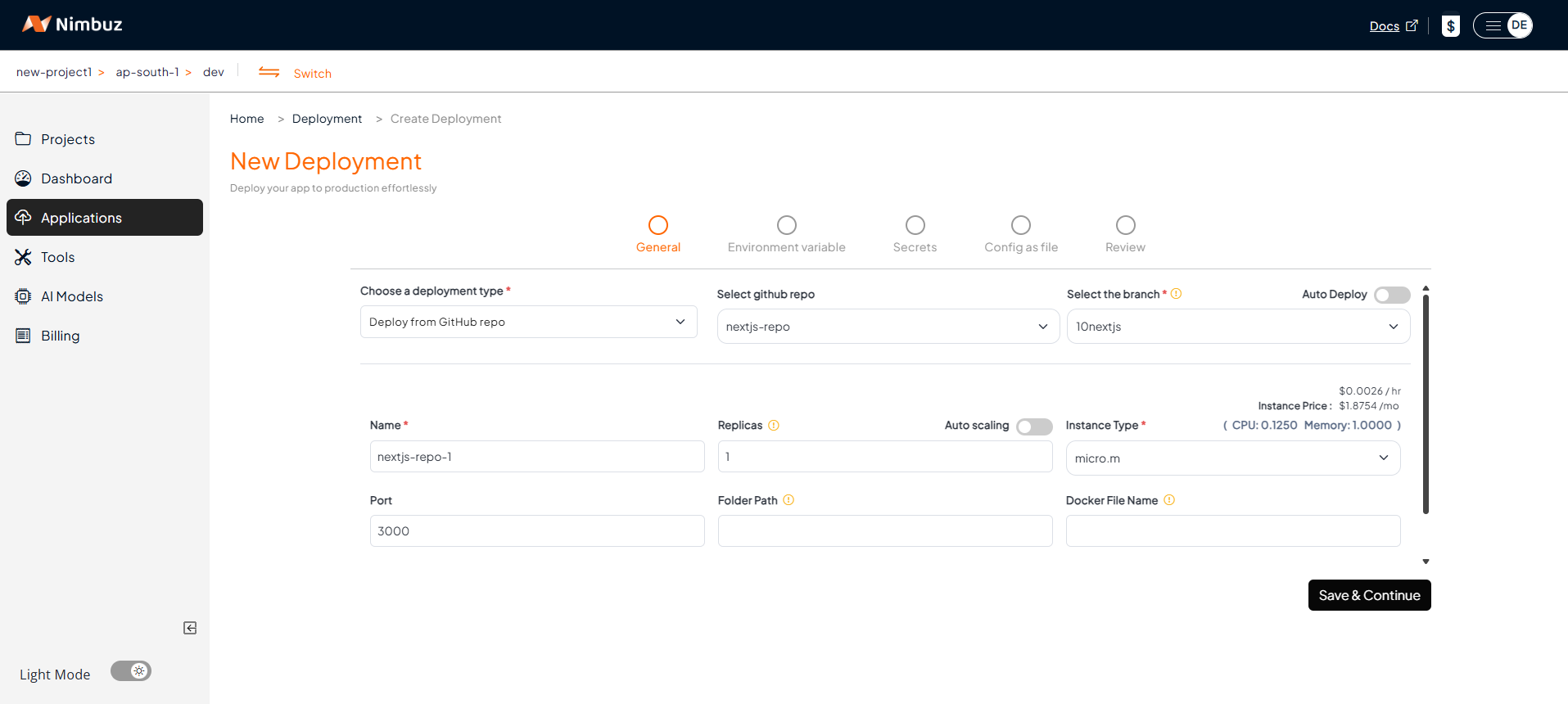
- Choose your deployment type:
- Connect your code repository: GitHub or GitLab → Connect account → Pick repo and branch. [OR]
- Upload your code via zip or tar file: Just upload your code.
- Configure the app port and instance type.
Let Nimbuz handle the deployment automatically.
Configure Environment Variables, Secrets, and Code as Config
If your Next.js application depends on configuration values such as:
- API base URLs
- Third party service keys
- Runtime configuration settings
You can securely configure them directly from the deployment configuration page before deploying your application
Nimbuz supports:
- Environment Variables : Used for application configuration values.
- Secrets : Used for sensitive information such as password.
- Code as Config : Deployment settings are defined in a configuration file. When you deploy, the platform reads this file and automatically configures the application.
This approach keeps sensitive data secure and prevents it from being hardcoded into your source code.
Environment Variables vs Secrets
In the Nimbuz Platform, Environment Variables are used for general configuration like API URLs and app settings, while Secrets are used for sensitive data such as passwords and API keys. Environment Variables are easily accessible, whereas Secrets are securely stored, encrypted, and hidden to protect confidential information.
Step 2: Review & Deploy
- Review the deployment details.
- Click Submit to deploy your application and make it live instantly.
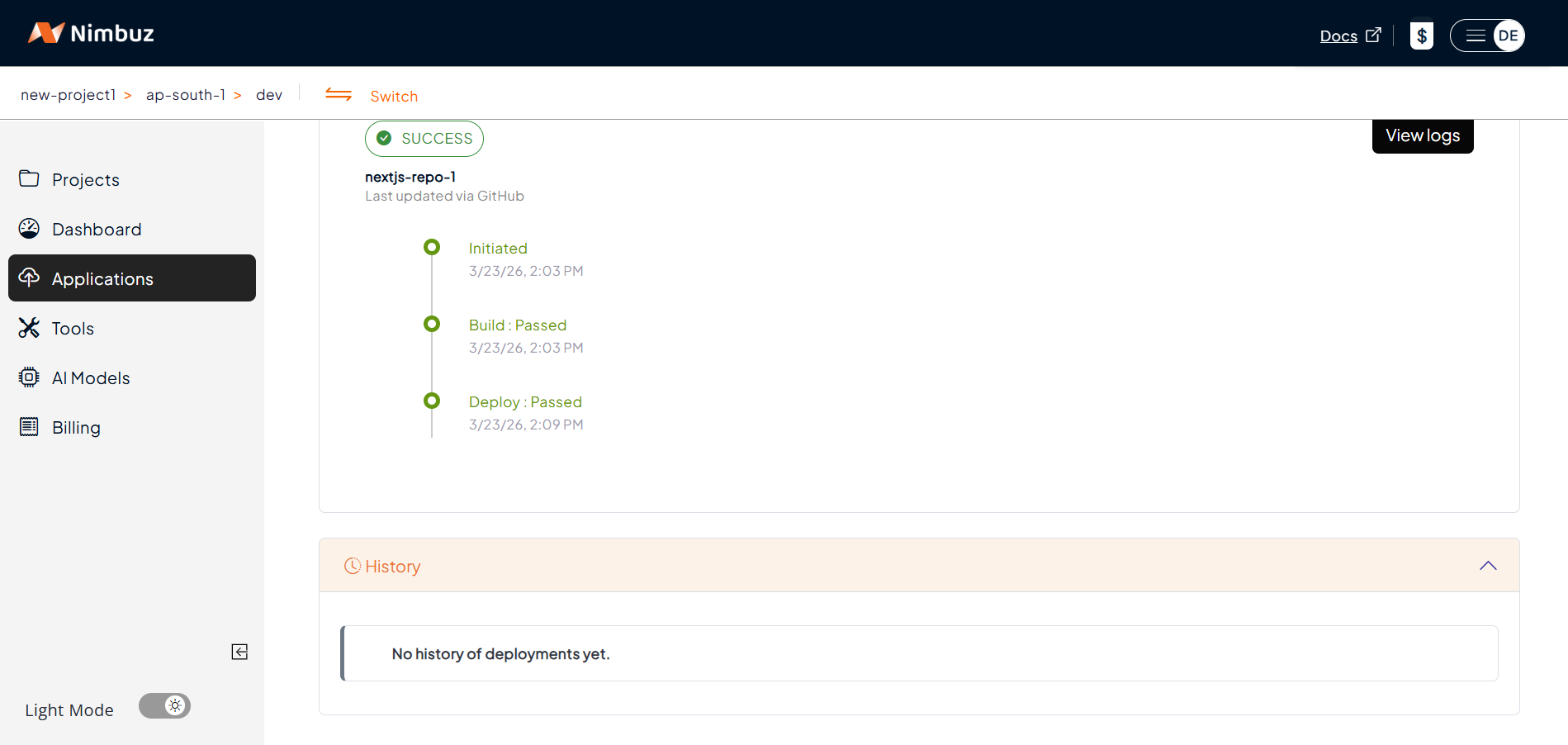
Step 3: Track Your Application
- View logs, status and recent releases directly in the UI.
- No SSH or terminal required.
Step 4: Access Your App
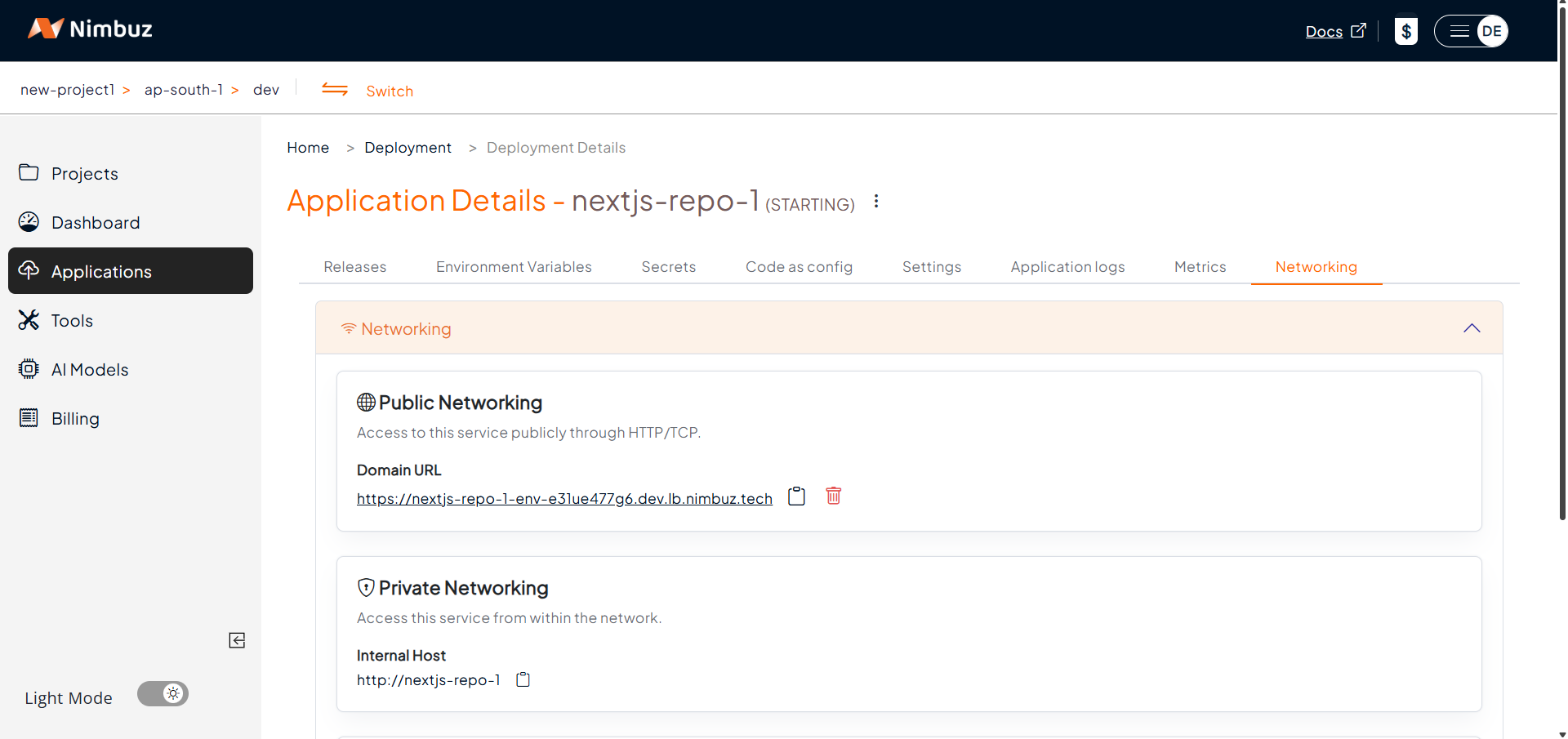
- Go to the Networking tab → Click Generate Domain.
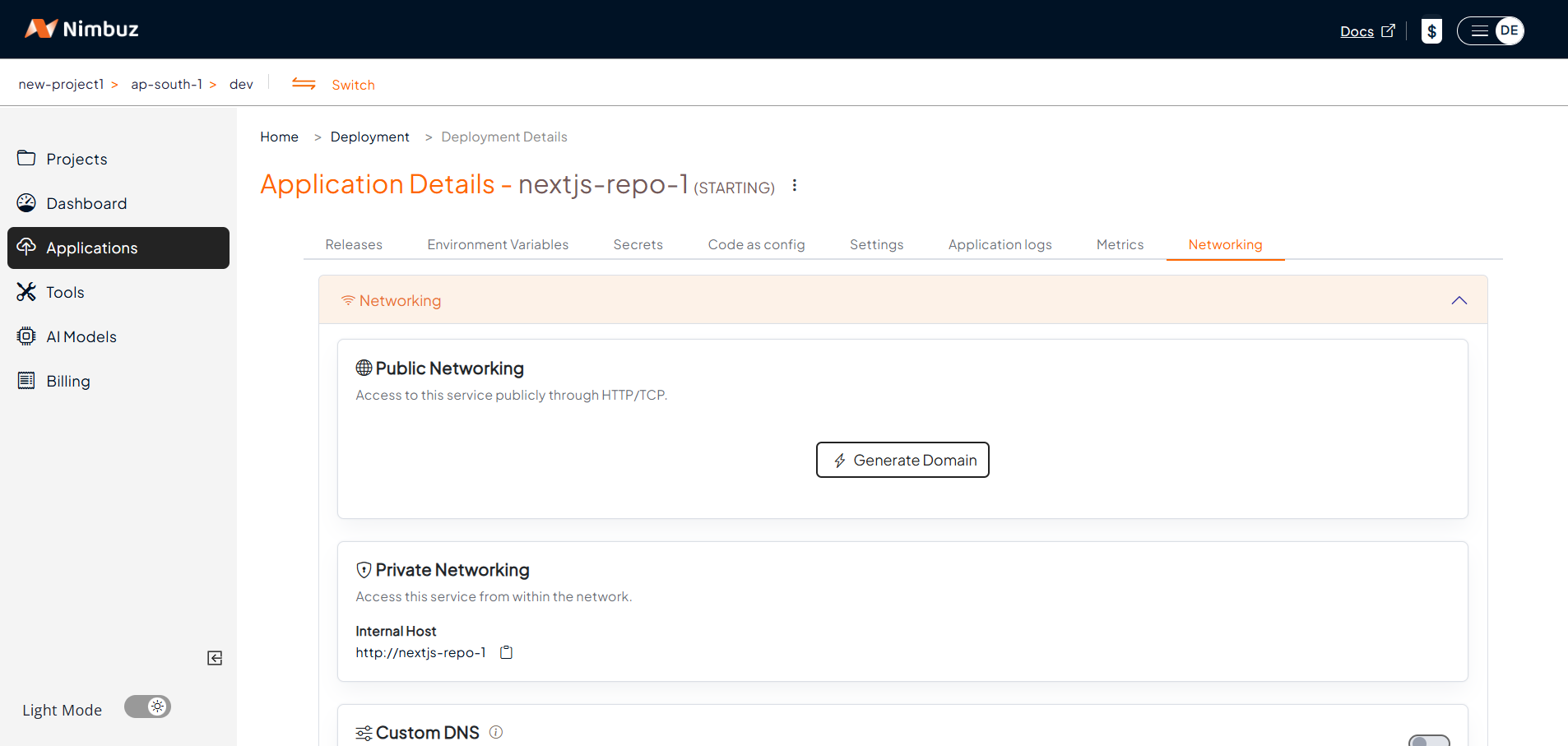
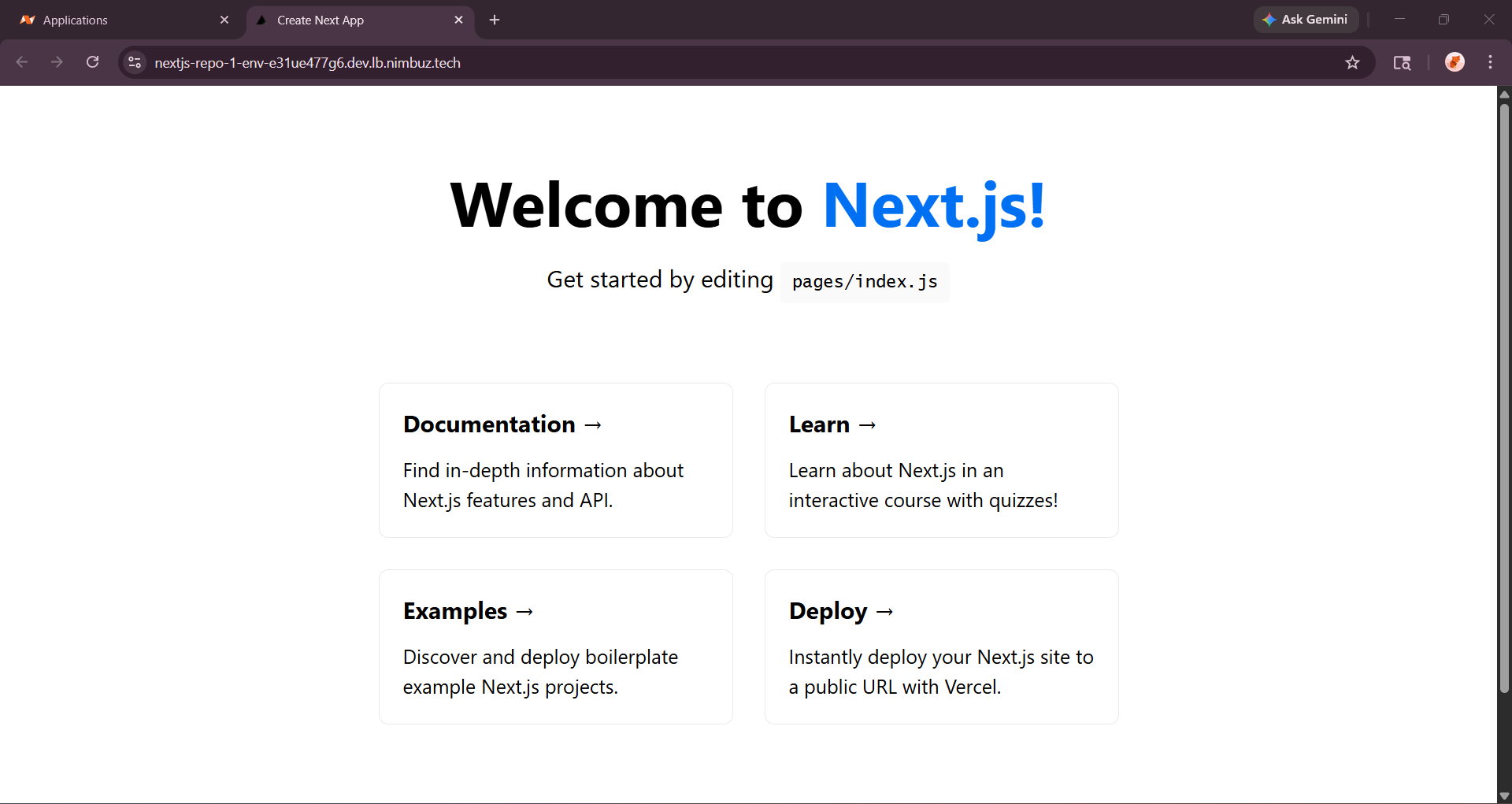
- After clicking Generate Domain, the system generates a public endpoint.
- Your app is automatically served with HTTPS.
- Optionally, map a custom domain.
This allows the application to go live quickly.
Hosting & Endpoint Setup Compared: Azure vs Nimbuz
When deploying a Next.js application, both Azure Virtual Machines and Nimbuz Platform can host your application, but the setup process is different.
Azure Virtual Machine:
- Developers must configure hosting manually.
This includes:
- Creating a VM
- Installing Nginx or Node.js
- Uploading build files
- Configuring routing
- Setting up SSL certificates
Result: Flexible but time consuming setup.
In short: Azure provides full control but requires manual configuration.
Nimbuz Platform:
Nimbuz simplifies the entire hosting process.
When you deploy an application and click on generate domain:
- A public endpoint is generated automatically
- HTTPS is enabled automatically
- No server configuration is required
Result: Instant hosting with minimal effort.
In short: Nimbuz offers a simple and automated deployment experience for developers with zero DevOps support.
Azure vs Nimbuz: Key Differences
| Feature | Azure VM | Nimbuz Platform (PaaS) |
|---|---|---|
| Deployment | Manual setup via SSH | One click deployment |
| Setup Time | 30 to 40 minutes | 2 to 3 minutes |
| Server Setup | Manual installation | Automatic runtime setup |
| SSL | Manual configuration | Built in HTTPS |
| Monitoring | External tools required | Built in log viewer |
| Scaling | Manual configuration | Platform managed |
| Ease of Use | Requires cloud knowledge | Beginner friendly |
| Cost | Multiple infrastructure costs | Single platform plan |
| Access URL | http://IP or custom domain |
http://<app-name>.nimbuz.tech or custom domain |
Conclusion
Both Microsoft Azure and Nimbuz provide reliable deployment solutions for Next.js applications.
Azure is ideal for teams needing full control and customization, while Nimbuz is perfect for fast, automated, and hassle free deployments.
In short:
- Azure VM → Control + Flexibility
- Nimbuz (PaaS) → Speed + Simplicity