Deploying an Angular Application on Azure vs Nimbuz

In today's fast paced development landscape, modern web applications need deployment platforms that are quick, scalable, and dependable. Choosing the right deployment strategy after building an Angular application can greatly enhance performance and developer productivity.
In this article, we compare two popular deployment strategies:
- Running applications on a Virtual Machine using Microsoft Azure
- Using a Platform as a Service (PaaS) solution like Nimbuz
Deploy an Angular Application on Azure Virtual Machine
Azure Virtual Machines offer full control over infrastructure, requiring manual setup and management of the OS, runtime, and deployment.
Step 1: Create an Azure Virtual Machine
- Go to Azure Portal
- Click Create Resource → Virtual Machine
- Configure:OS: Ubuntu (recommended)Size: Basic (for testing)Authentication: SSH / Password
- Click Create
Step 2: Connect to the Virtual Machine
ssh username@your-vm-ipStep 3: Install Required Software
Update system:
sudo apt update && sudo apt upgrade -y
Install Node.js:
curl -fsSL https://deb.nodesource.com/setup_18.x | sudo -E bash -
sudo apt install -y nodejs
Install Angular CLI:
npm install -g @angular/cli
Step 4: Upload Your Angular App
Using Git:
git clone https://github.com/your-repo.git
cd your-project
Step 5: Build the Angular App
Angular apps are static files, so build it:
npm install
ng build --configuration production
Build output will be inside:
dist/your-project-name/Step 6: Install and Configure Web Server (Nginx)
Install Nginx:
sudo apt install nginx -yRemove default config:
sudo rm -rf /var/www/html/*Copy Angular build files:
sudo cp -r dist/your-project-name/* /var/www/html/Step 7: Configure Nginx for Angular Routing
Edit config:
sudo nano /etc/nginx/sites-available/defaultUpdate:
server {
    listen 80;
    server_name _;

    root /var/www/html;
    index index.html;

    location / {
        try_files $uri $uri/ /index.html;
    }
}
Restart Nginx:
sudo systemctl restart nginxStep 8: Open Port in Azure
- Go to VM → Networking
- Add inbound rule:
- Port: 80
- Protocol: TCP
- Action: Allow
Now access:
http://your-vm-ipStep 9: (Optional) Enable HTTPS
Use:
- Let's Encrypt
- Certbot:
sudo apt install certbot python3-certbot-nginx
sudo certbot --nginx
Deploy an Angular Application on Nimbuz
Nimbuz is a cloud based PaaS that eliminates the need for manual infrastructure management by automating setup, build, and networking processes.
Here's a simple, step by step guide to get your app running on Nimbuz:
Step 1: Go to Applications
- Log in or sign up on Nimbuz platform .
- Navigate to the Applications section.
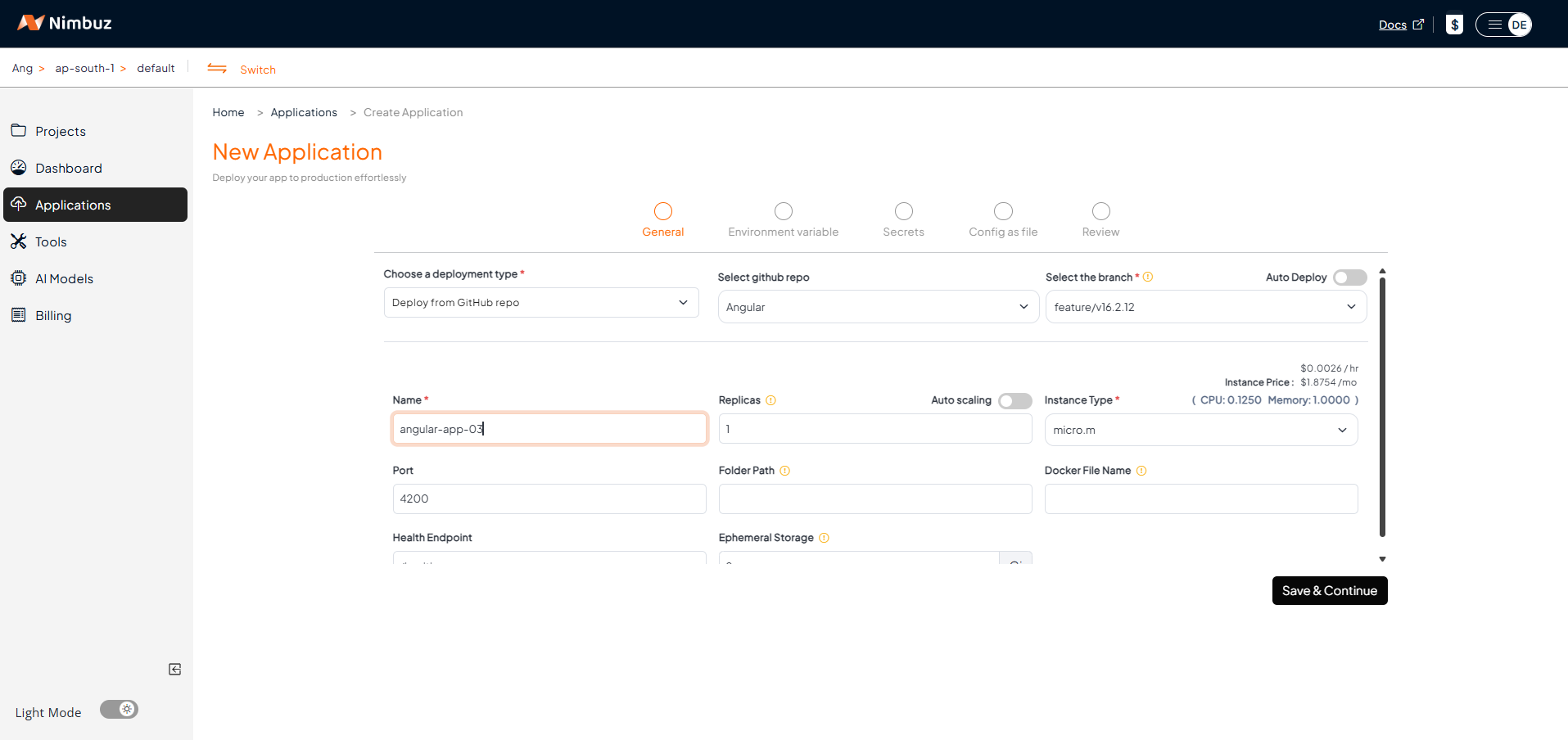
- Choose your deployment type:
- Connect your code repository: GitHub or GitLab → Connect account → Pick repo and branch. [OR]
- Upload your code via zip or tar file: Just upload your code.
- Configure the app port and instance type.
- If your application requires configuration (such as environment variables, secrets, or code as config), you can set them on the deployment configuration page after clicking Save & Continue. If not, you can skip the configuration step.
Review & Deploy:
- Review your deployment details.
- Click Submit to deploy your application and make it live instantly.
Step 2: Track Your Application
Once your application is successfully deployed, you can monitor and manage it from the dashboard. Nimbuz provides detailed insights across different sections.
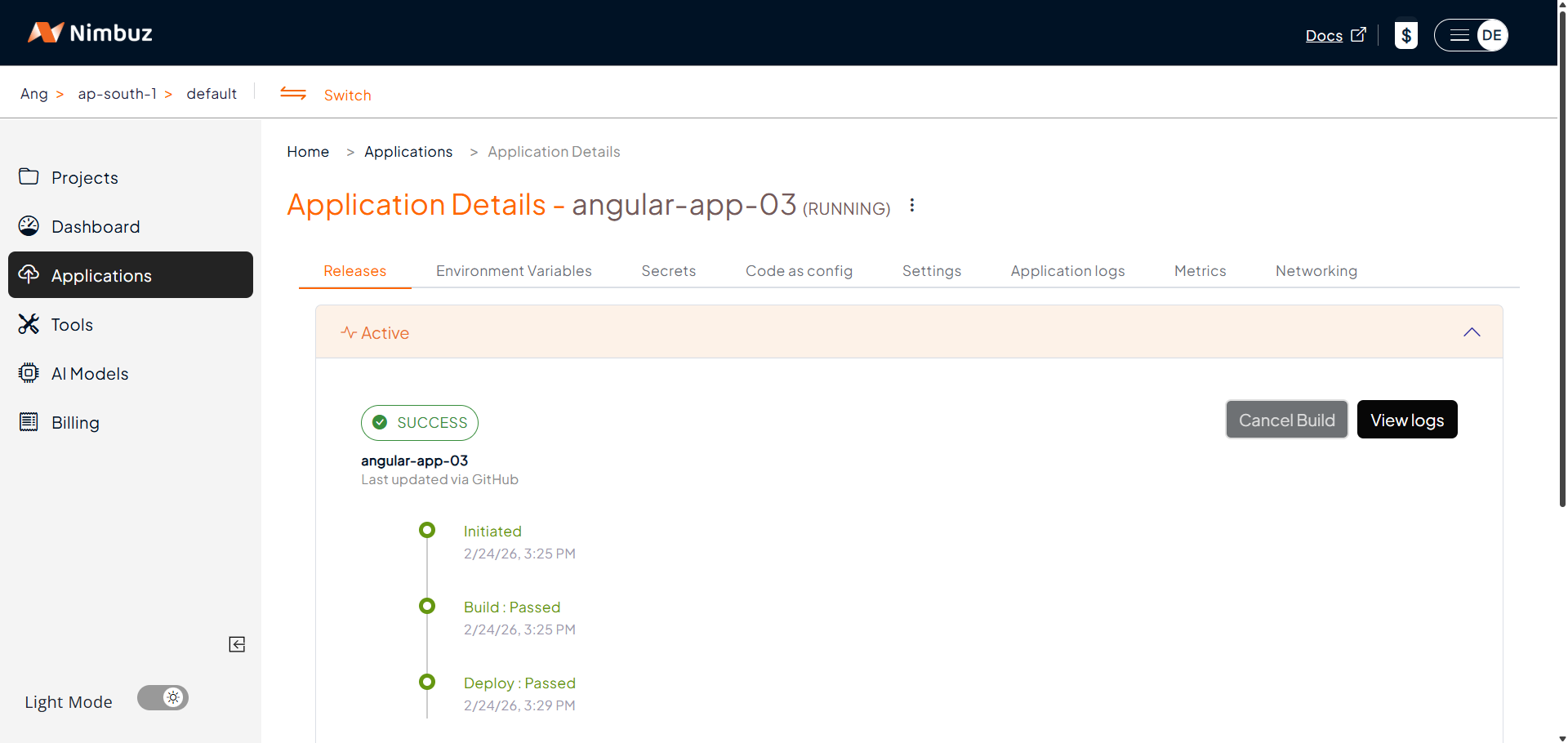
- View deployment status, logs, and recent releases directly in the UI.
Step 3: Application URL & Access
- Go to the Networking tab → Click Generate Domain.
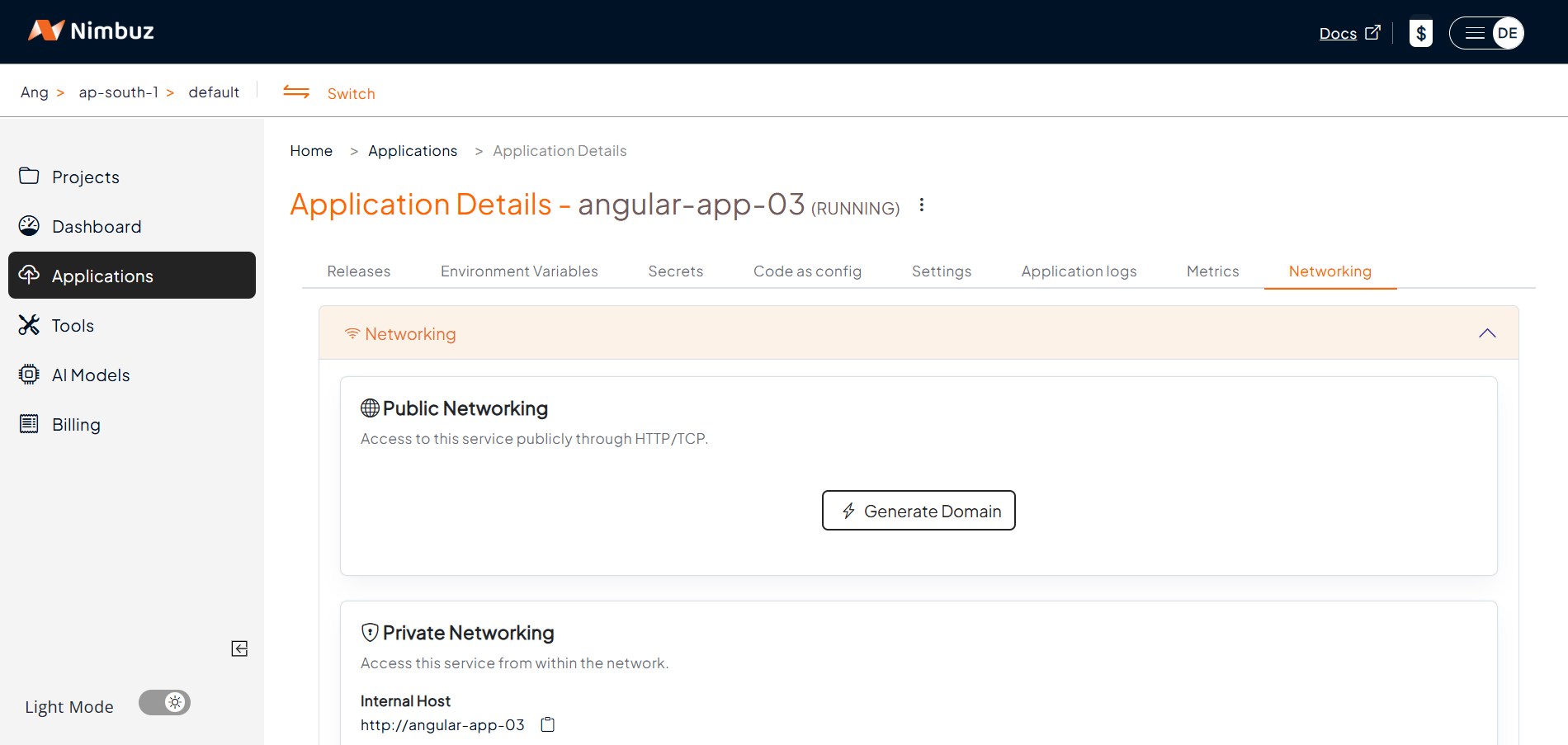
- After clicking Generate Domain, the system generates a public endpoint.
- Your app is automatically served with HTTPS.
- Optionally, map a custom domain.
This allows the application to go live quickly.
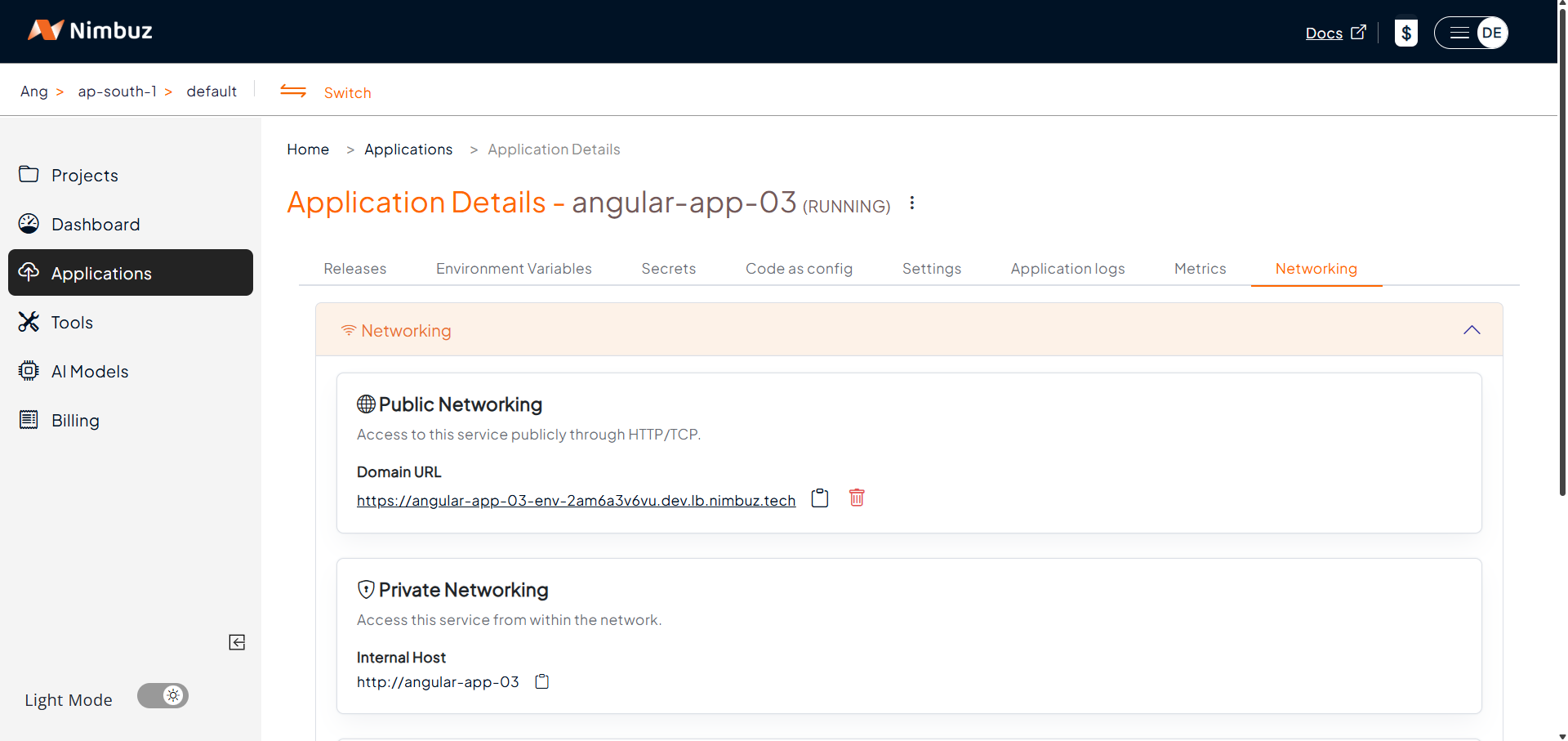
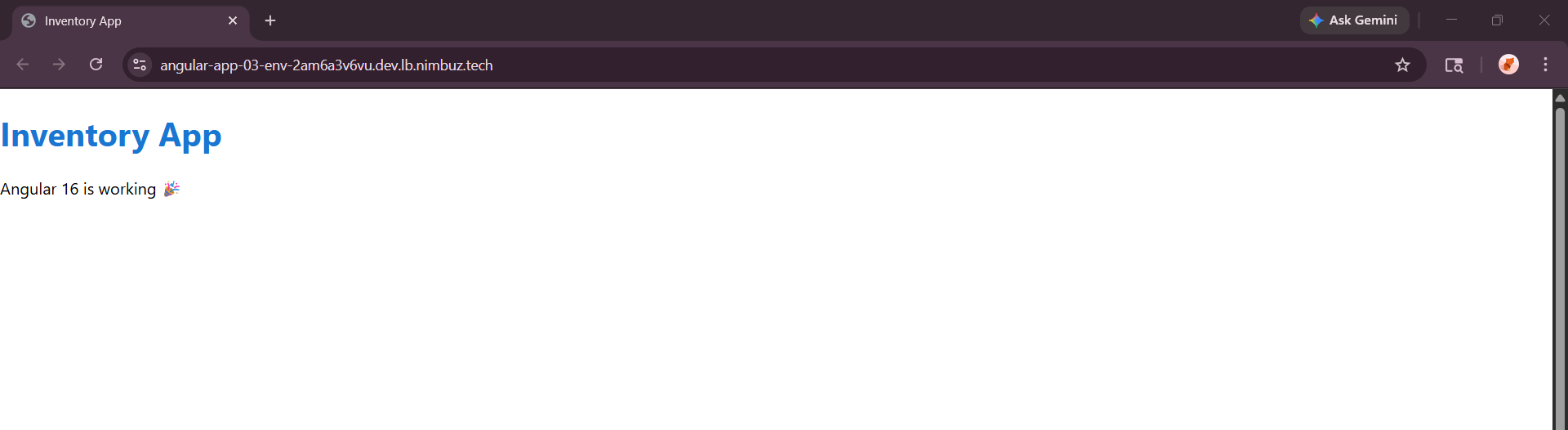
Hosting & Endpoint Setup Compared: Azure vs Nimbuz
When deploying a Angular application, both Azure Virtual Machines and Nimbuz Platform can host your application, but the setup process is different.
Azure Virtual Machine:
Manual setup required:
- Create VM
- Install dependencies
- Configure server
- Set up SSL
Result: Flexible but time consuming setup.
In short: Azure provides full control but requires manual configuration.
Nimbuz Platform:
Fully automated:
- Instant domain generation
- Built in HTTPS
- No server setup
Result: Instant hosting with minimal effort.
In short: Nimbuz offers a simple and automated deployment experience for developers with zero DevOps support.
Azure vs Nimbuz: Key Differences
| Feature | Azure VM | Nimbuz Platform (PaaS) |
|---|---|---|
| Deployment | Manual setup via SSH | One click deployment |
| Setup Time | 30 to 40 minutes | 2 to 3 minutes |
| Server Setup | Manual installation | Automatic runtime setup |
| SSL | Manual configuration | Built in HTTPS |
| Monitoring | External tools required | Built in log viewer |
| Scaling | Manual configuration | Platform managed |
| Ease of Use | Requires cloud knowledge | Beginner friendly |
| Cost | Pay separately for EC2 instance, storage, and SSL. Very high cost with fixed package. | Pay only for the Nimbuz plan - all infrastructure included. Low cost, 60% cheaper than AWS. |
| Access URL | http://IP or custom domain |
http://<app-name>.nimbuz.tech or custom domain |
Conclusion
Both Microsoft Azure and Nimbuz provide reliable deployment solutions for Angular applications.
- Azure VM → Best for control, flexibility, and customization
- Nimbuz (PaaS) → Best for speed, simplicity, and automation
Final Takeaway
- Azure VM → Control + Flexibility
- Nimbuz → Speed + Simplicity