Deployment Status Made Simple in Nimbuz: Understanding Application State


Deploying an application involves several stages, from application creation and building to deployment, updating, and running the application successfully. Nimbuz provides deployment status information to help users understand the current state of their application and the outcome of its latest release.
Nimbuz displays two important status indicators for an application:
- Application Status – Shows the current state of the application, such as whether the application is available, stopped, running, or being updated.
- Last Release Status – Shows the status or outcome of the application's most recent release, helping users determine whether the build or deployment was successful, failed, or is still in progress.
Application Status
Nimbuz currently provides the following Application Statuses:
- Not Available
- Stopped
- Running
- Updating
Last Release Status
The Last Release Status provides additional information about the latest release activity. For example, an application can be Running while its Last Release Status is Failed. This means the application is currently running, but the most recent release attempt was unsuccessful.
Understanding the difference between Application Status and Last Release Status helps users quickly determine both the current state of their application and what happened during its latest release.
In this guide, we will explore the available Application Statuses and Last Release Statuses in Nimbuz, explain what each status means, and describe how users can interpret these statuses throughout the deployment lifecycle.
1. Application Status
1.1 Not Available
Not Available indicates that the application is not currently available to serve or run. This status commonly occurs when a new application is being created and its initial release is still being processed, or when a build fails and the application cannot be deployed successfully.
During Application Creation – Building
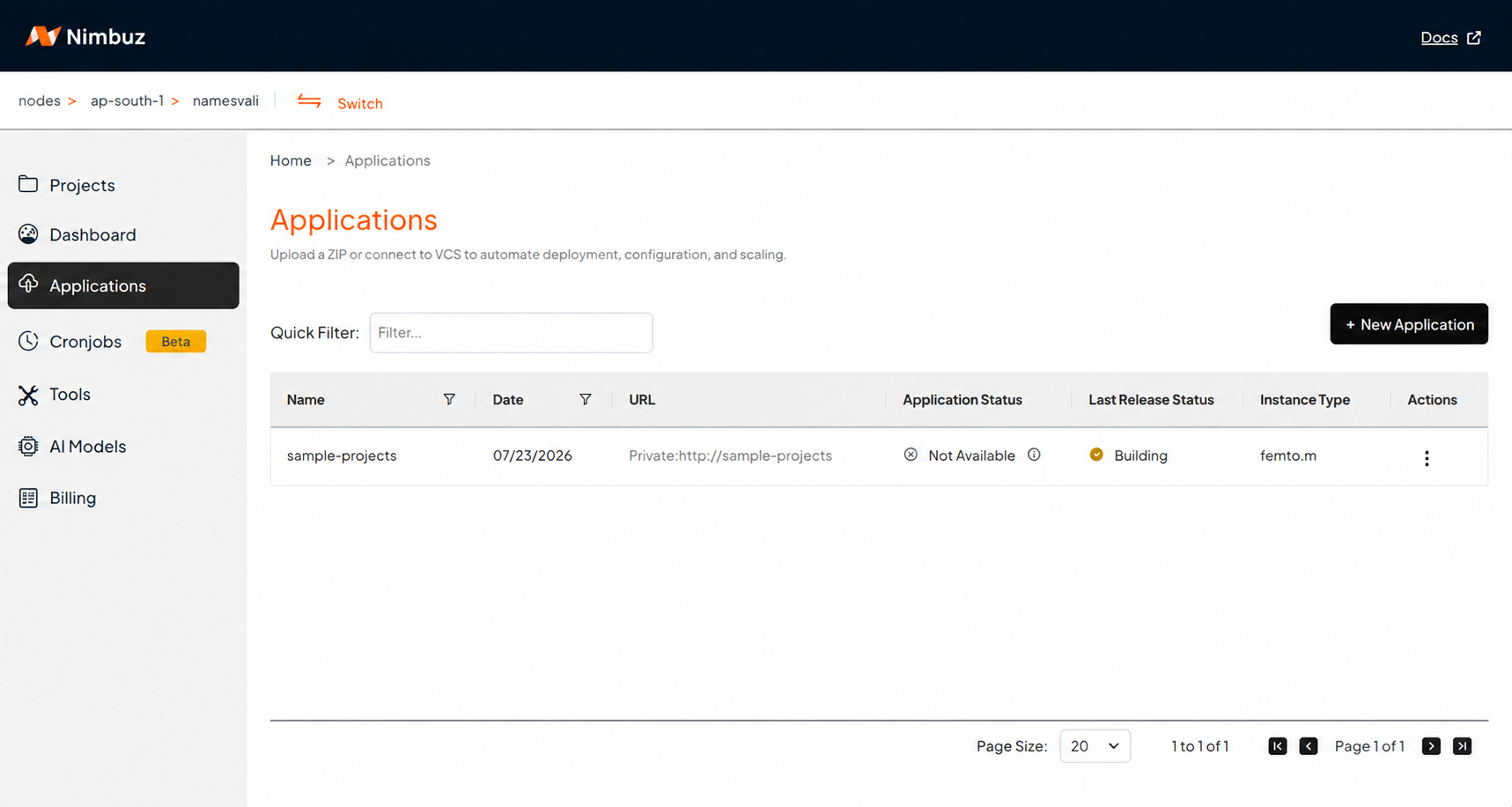
When a user creates a new application, Nimbuz starts the build and deployment process. While the initial build is in progress, the application is displayed as Not Available.
Application Status: Not Available
Last Release Status: Building
The Building status indicates that Nimbuz is currently processing the application build. The application is not yet available until the build and deployment process is completed successfully.
When the Build Fails
If the application build fails, the application remains Not Available because the application cannot be deployed until a successful build is completed.
Application Status: Not Available
Last Release Status: Build Failed
In this situation, users can select View logs from the Releases section to investigate the failure.
The Build & Deployment Logs provide details about the release process, including:
- Build logs – Help identify issues that occurred while building the application image.
- Deployment logs – Help identify issues that occurred during deployment.
For a build failure, the release timeline displays the failed Build: Build image stage along with the View logs option.
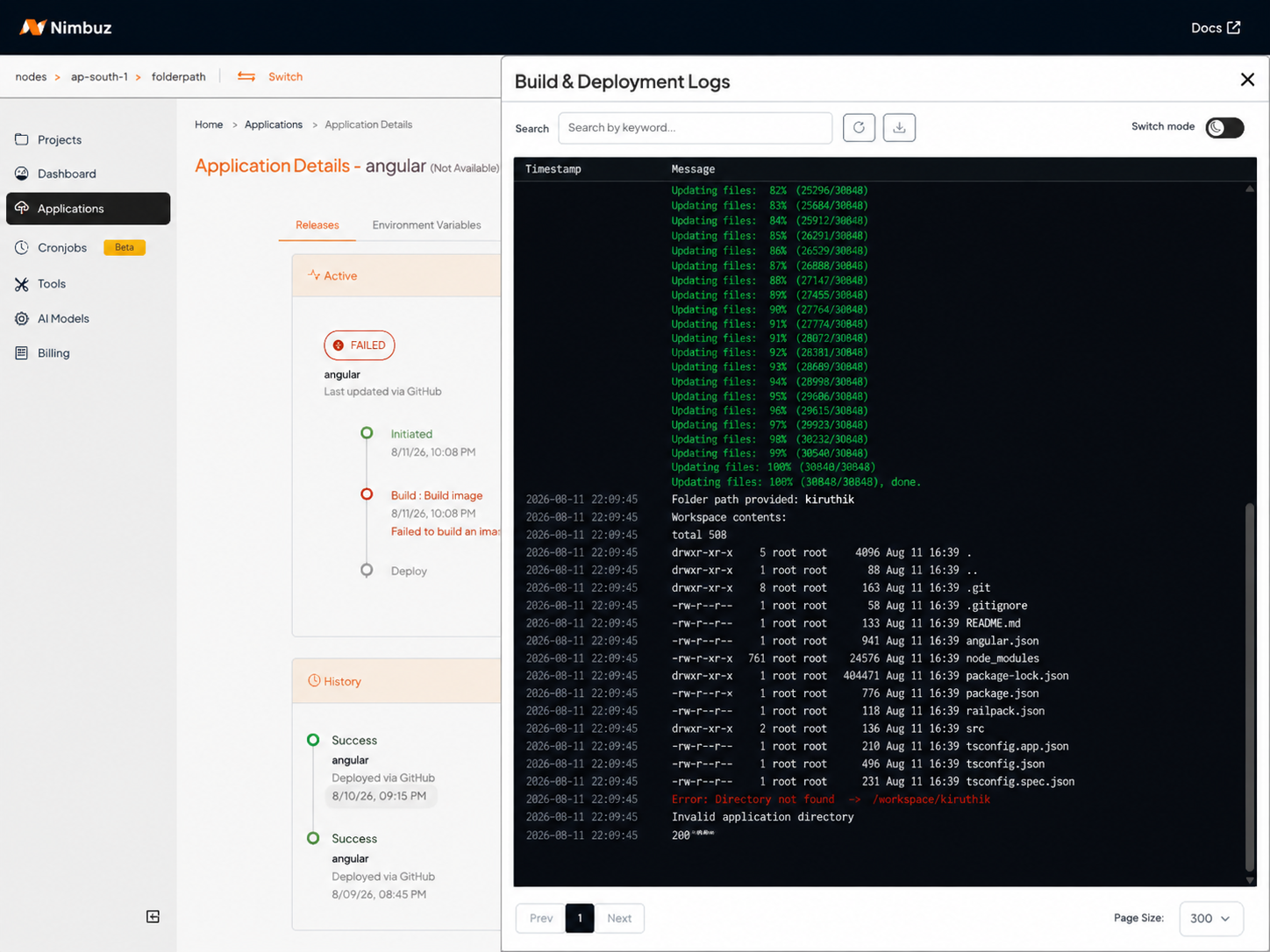
After selecting View logs, Nimbuz opens the Build & Deployment Logs panel. Users can review the logs to identify the cause of the failure and take the necessary corrective action.
Once the issue is resolved, the user can trigger a new build and deployment. A successful release can then make the application available.
1.2 Stopped
The Stopped status indicates that the application is not currently running.
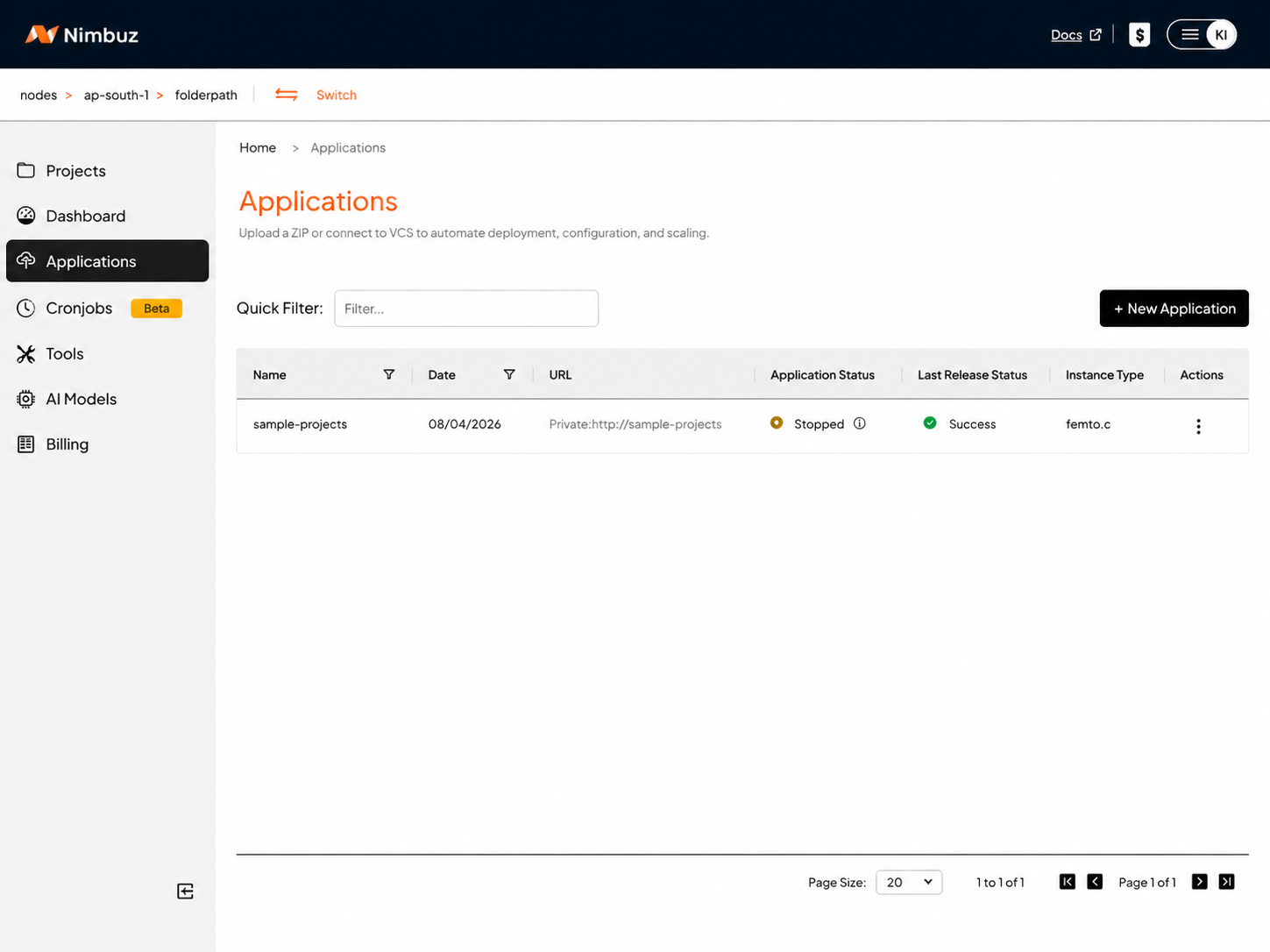
When an application is successfully stopped, Nimbuz displays:
Application Status: Stopped
Last Release Status: Success
While the application is stopped, users can update the required application values. The application remains stopped until the user chooses to resume it.
When the application is resumed, Nimbuz applies the updated values and starts the application with the latest configuration.
Example:
- Application is Stopped.
- User updates the required application values.
- The changes are saved while the application remains stopped.
- When the application is Resumed, Nimbuz applies the updated values.
- The application starts with the latest configuration.
1.3.Running
The Running status indicates that the application is successfully deployed and currently available to users.
When the latest release is successful, Nimbuz displays:
Application Status: Running
Last Release Status: Success
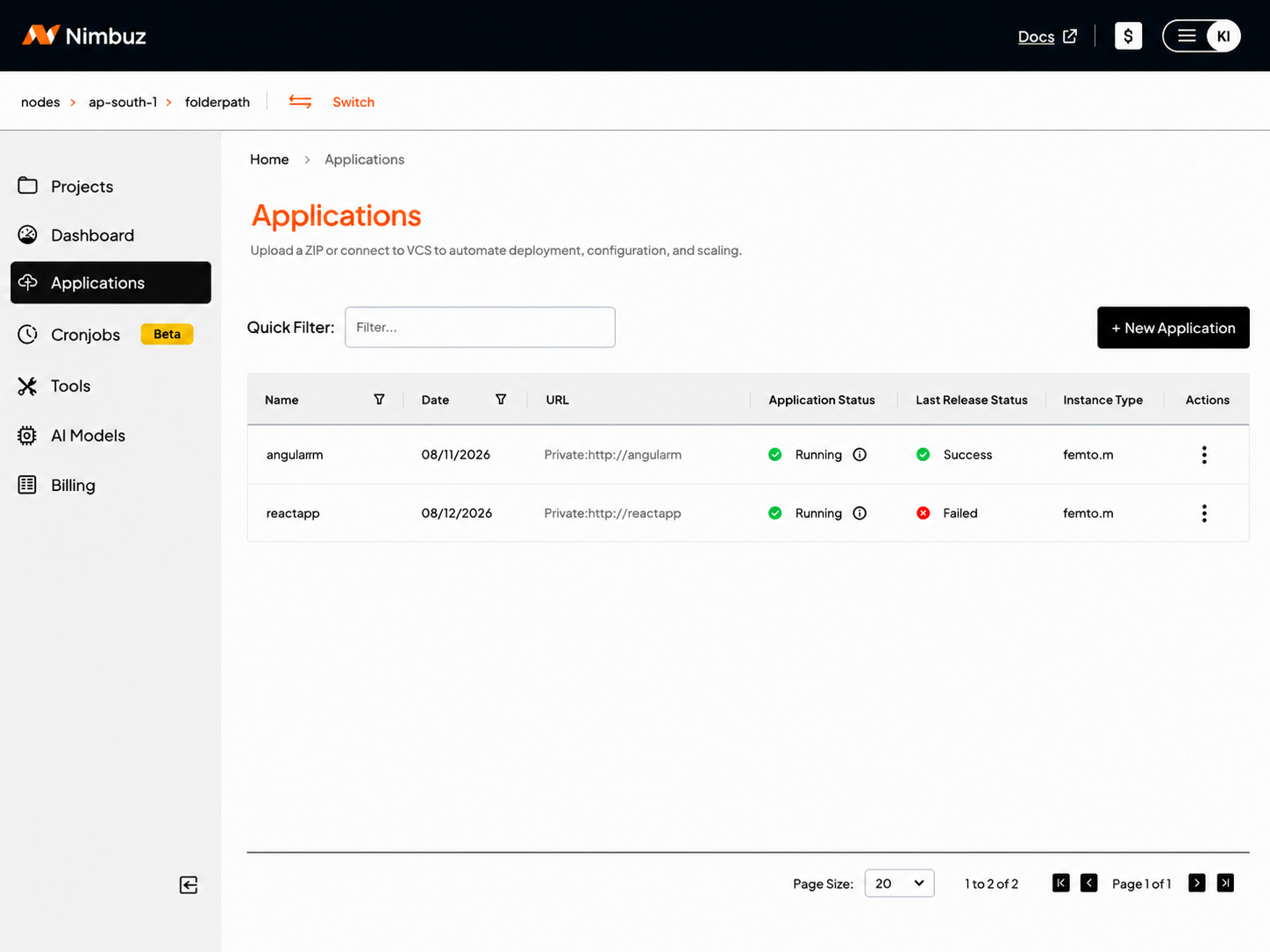
An application can also remain Running when the latest release has failed. In this case:
Application Status: Running
Last Release Status: Failed
This means the existing application is still running, but the latest release attempt was unsuccessful.
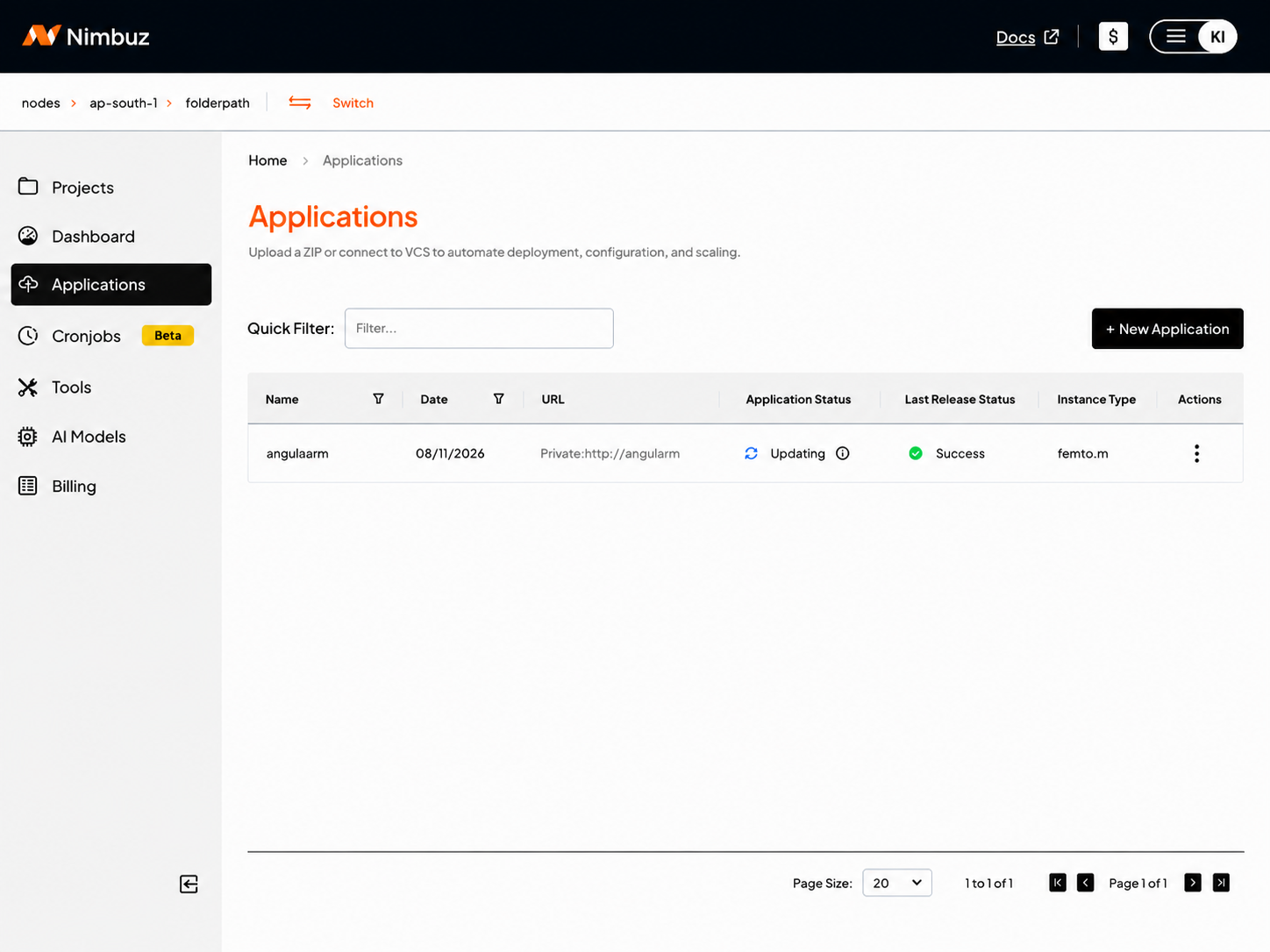
1.4 Updating
The Updating status indicates that an existing application is currently being updated.
During the update, the Application Status remains Updating while Nimbuz processes the changes and performs the required checks, including validating the application and its connectivity.
The application may remain in the Updating state for a short period while these checks are in progress. Once the update process is completed, the application moves to the appropriate final status based on the outcome of the update.
For example:
- Running – The update completed successfully and the application is running normally.
- Degraded – The update completed, but the application is experiencing an issue that affects its normal operation.
- Failed – The update was unsuccessful.
When the update is successful, Nimbuz displays:
Application Status: Running
Last Release Status: Success
2. Last Release Status
The Last Release Status indicates the current state or outcome of the application's most recent release.
| Last Release Status | Description |
|---|---|
| Pending | The latest release is waiting to be processed. |
| Building | The latest release is currently being built. |
| Success | The latest release completed successfully. |
| Failed | The latest release was unsuccessful. |
| Cancelled | The latest release was cancelled before completion. |
| Build Failed | The application build failed. |
For release failures, users can select View logs from the Releases section to review the Build & Deployment Logs and identify the cause of the issue.
conclusion
Understanding deployment status helps users quickly identify the current state of an application and the outcome of its latest release.
By using Application Status and Last Release Status together, users can monitor application availability, understand release progress, and identify when further action is required.
This visibility makes it easier to monitor deployments and troubleshoot release issues when they occur.